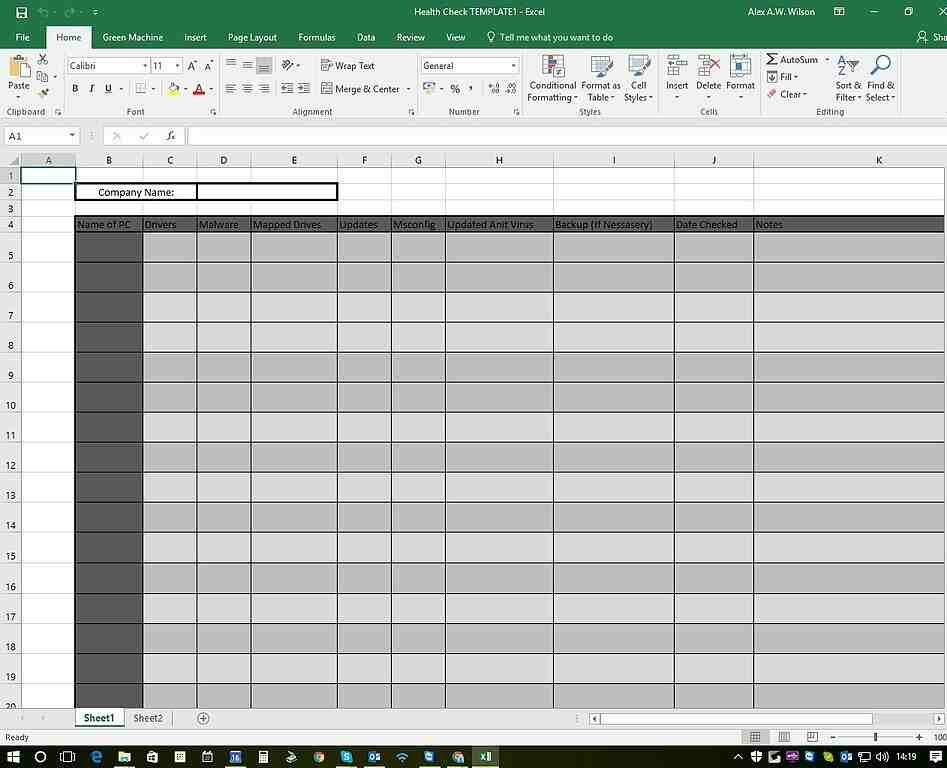

How to Do Things in Excel (Step-by-Step Guide)
Microsoft Excel is one of the most useful tools for organizing data, performing calculations, and building dashboards. This guide answers the most common “how to do things in Excel” questions with simple steps, practical examples, and the exact menu paths to click.
Focus keyword: How to do things in Excel
Quick answer: what does “how to do things in Excel” cover?
It usually means learning the essential tasks people search for daily: formulas, charts, filters, pivot tables, formatting, sorting, cleaning data, and shortcuts. If you master these, you can handle 80% of real-world Excel work.
How to create a chart in Excel
Use charts to visualize trends and comparisons.
- Select your data range (include headers).
- Go to Insert → choose a chart type (Column, Line, Bar, Pie, etc.).
- Click the chart → use Chart Design to add title, labels, and style.
Example: Select A1:B13 (Months + Sales) → Insert → Line chart → Add “Monthly Sales” title.
Read also: How to Make a Chart in Excel (Examples + Formulas)
How to use formulas in Excel
Formulas start with “=”. Use cell references to calculate automatically.
Most-used formulas
- SUM:
=SUM(B2:B10) - AVERAGE:
=AVERAGE(B2:B10) - IF:
=IF(B2>=100,"OK","Review") - XLOOKUP (modern):
=XLOOKUP(E2,A:A,B:B) - VLOOKUP (legacy):
=VLOOKUP(E2,A:B,2,FALSE)
Example: calculate margin
- Revenue in B2, Cost in C2
- Margin in D2:
=(B2-C2)/B2 - Format D2 as Percentage
Read also: Excel Formulas Guide (with Examples)
How to freeze rows or columns in Excel
Freezing keeps headers visible while scrolling.
- Click the cell below the row(s) you want to freeze (and to the right of columns to freeze).
- Go to View → Freeze Panes → Freeze Panes.
Tip: To freeze the top row only: View → Freeze Panes → Freeze Top Row.
Customer Satisfaction Reports in Excel: Download Now, It’s Free!
How to filter data in Excel
Filtering shows only the rows that match a condition.
- Select your table (include headers).
- Go to Data → click Filter.
- Use dropdown arrows on headers to filter by value, date, or text.
Example: Filter “Status” to show only “Paid”.
How to create a pivot table in Excel
Pivot tables summarize large datasets quickly.
- Select your data range.
- Go to Insert → PivotTable.
- Choose where to place it (new sheet is best).
- Drag fields into Rows, Columns, Values, Filters.
Example: Rows = Country, Values = Sum of Revenue → instantly shows revenue by country.
How to remove duplicates in Excel
- Select the range (or click inside the table).
- Go to Data → Remove Duplicates.
- Select the columns that define a “duplicate” → OK.
Tip: Always save a copy or add a backup column before removing duplicates.
How to sort data in Excel
- Click inside your dataset.
- Go to Data → Sort.
- Select the column → choose A→Z or Z→A (or custom sort).
Best practice: Sort the entire table, not just one column, to avoid misaligned rows.
How to merge cells in Excel (and when not to)
Merging can break sorting/filtering. Use it mainly for titles.
- Select cells → Home → Merge & Center.
Better option: Use Center Across Selection (Format Cells → Alignment) to keep data structure clean.
How to protect cells or worksheets in Excel
- Select cells users can edit → Right-click → Format Cells → Protection → uncheck “Locked”.
- Go to Review → Protect Sheet.
- Set permissions and (optional) password.
Comprehensive Business Startup Checklist: From Idea to Launch + Excel and Word Free Download
How to create a drop-down list in Excel
- Select the cell(s).
- Go to Data → Data Validation.
- Allow: List.
- Source: type values separated by commas (e.g.,
Low,Medium,High) or select a range.
How to use conditional formatting in Excel
Conditional formatting highlights values automatically.
- Select your range.
- Go to Home → Conditional Formatting.
- Pick a rule (Top/Bottom, Greater Than, Duplicate Values, Color Scales, etc.).
Example: Highlight overdue invoices: format dates older than TODAY().
How to calculate average, percentage, and text case
Average
=AVERAGE(A1:A10)
Percentage
Example: 20% of A1 → =A1*20/100
Lowercase / uppercase
- Lowercase:
=LOWER(A1) - Uppercase:
=UPPER(A1) - Title case (manual approach): use Power Query or a helper formula depending on need
Excel keyboard shortcuts (most useful)
Shortcuts save hours. Here are the most practical ones:
- Ctrl + C: Copy
- Ctrl + V: Paste
- Ctrl + Z: Undo
- Ctrl + Y: Redo
- Ctrl + F: Find
- Ctrl + H: Replace
- Ctrl + S: Save
- Ctrl + Arrow: Jump to edge of data
- Ctrl + Shift + L: Toggle filters
- Alt + =: AutoSum
FAQ: How to do things in Excel
What are the most important Excel skills to learn first?
Start with formulas (SUM, IF, XLOOKUP), filters, pivot tables, and charts. These cover most business use cases.
Should I learn VLOOKUP or XLOOKUP?
Learn XLOOKUP first (newer, simpler, more flexible). Use VLOOKUP only if you work with older files.
How do I clean messy Excel data quickly?
Use Remove Duplicates, Text to Columns, TRIM, CLEAN, and (best) Power Query for repeatable cleaning.
What is the fastest way to summarize thousands of rows?
A PivotTable. Insert → PivotTable → drag fields into Rows and Values.
Related Excel resources
- Benchmark in Excel: How to write a benchmark report
- PACE report analysis: project performance templates
Final takeaway
If you want to learn how to do things in Excel, focus on the essentials: formulas, charts, pivots, filtering, and clean data habits. Once you’re comfortable with those, Excel becomes a decision tool, not just a spreadsheet.
Next step: pick one task from this guide and apply it to a real file today. Results will come fast.